
Your first result
Use Choose to decide what TextAid should do with a passage. You can start from a selection in another application or type text into the TextAid window.
Need a model first? Set up an AI connection and model in Settings. You only need to do this once for the connection you plan to use.
Open Choose
Ctrl+C→CChoose an action
- In another Windows application, select the text you want to work on—or leave nothing selected if you want to type directly.
- Press Ctrl+C, then press C. These are consecutive keys, not a three-key chord.
- Choose opens with the captured selection when there is one. Without a selection, type or paste a passage in Captured text.
- Select an Action, such as Correct, then choose Process. A preset button can select and run its action in one click.
- Read the Transformation preview beside the input.
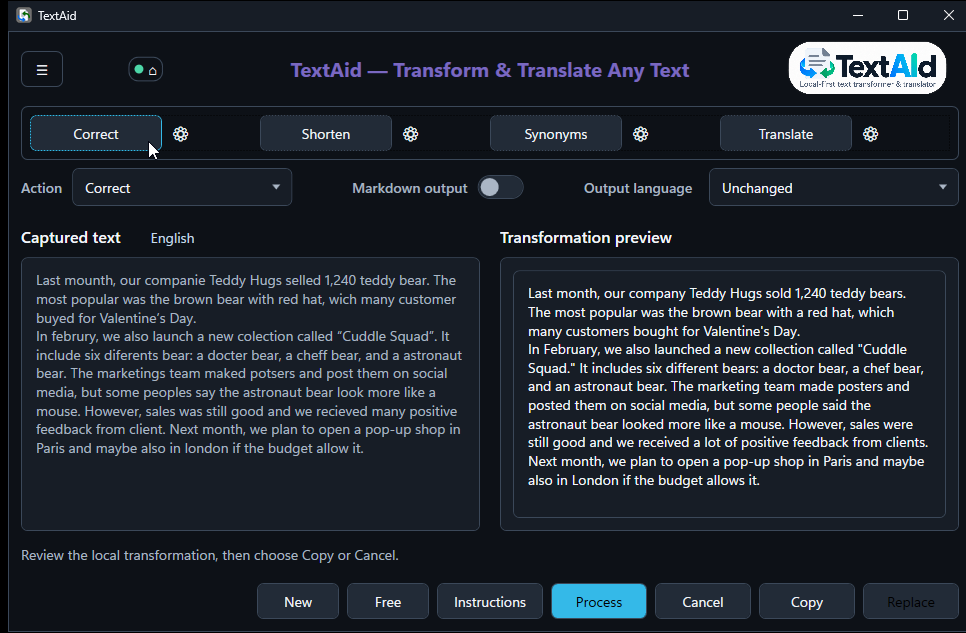
Use the result
Copy
Put the result on the clipboard and paste it where you want. The source application is left unchanged.
Replace
Replace the captured selection in its original application when TextAid can safely return to it. This is unavailable for manually entered text.
Cancel
Close the session without applying the result to the source text.
Try another action
Change the action or edit the input, then choose Process again to get a new preview.
Both shortcuts can be changed later in Settings → Language.