
Quick Translate
Translate a selection without stopping to choose an action. TextAid starts the translation automatically and still lets you review the result.
Translate selected text
Ctrl+C→TTranslate immediately
- Select text in a Windows application.
- Press Ctrl+C, then T. TextAid opens and begins the Translate action.
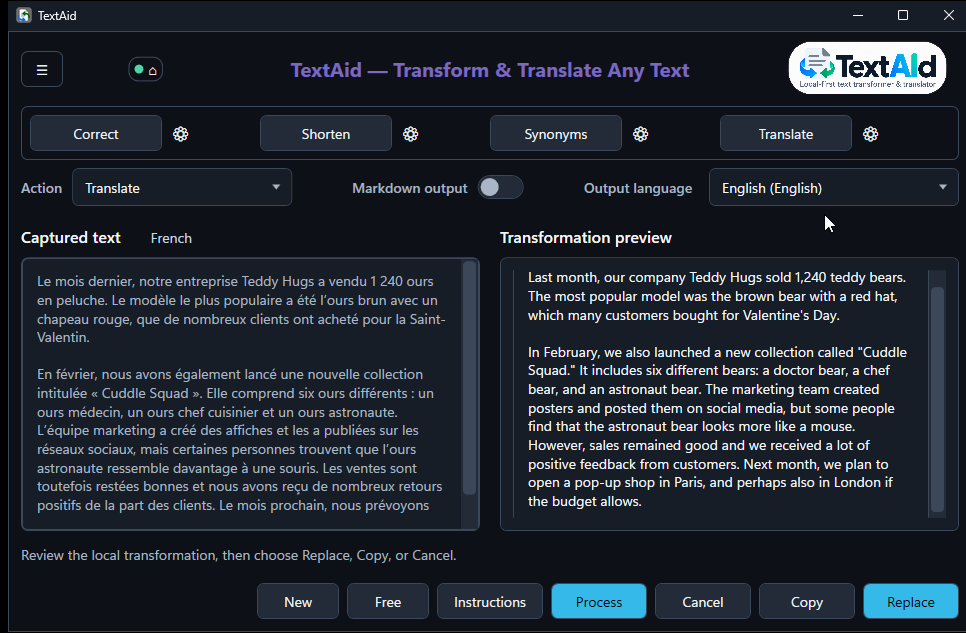
- Read the detected input language, destination language, and preview.
- Choose Replace if the captured source selection can be safely replaced, Copy to paste the result yourself, or Cancel.
How the destination is chosen
TextAid uses your application language and your preferred output language for quick Translate. If the source matches your application language, it translates into the preferred language. If it already matches the preferred language, it translates back into your application language. For another or uncertain source language, it uses your application language.
You can choose a different Output language in the main window. TextAid then translates the original input again; it does not translate the previous result. Set the two language preferences in Settings → Language.